How To Install A WordPress Theme Easily
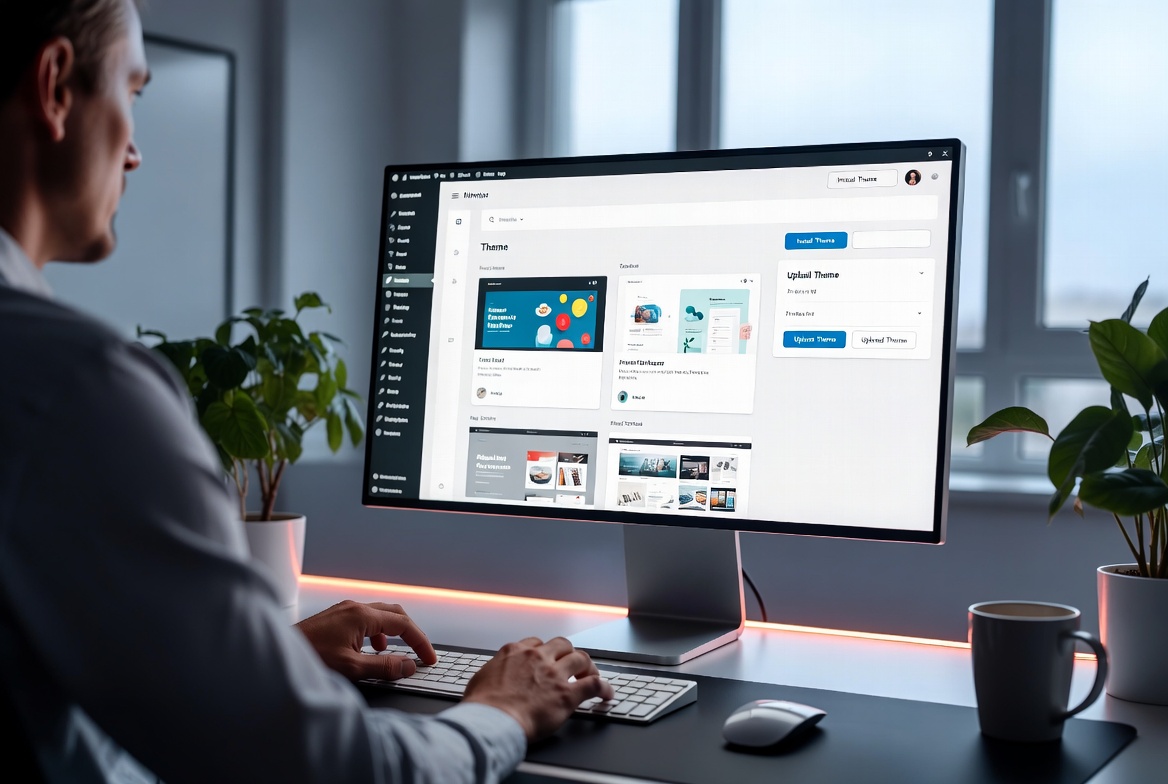
Learn How To Install A WordPress Theme Step By Step
Installing a new website design can completely transform your online presence, but many beginners are unsure where to start. Learning how to install a wordpress theme is one of the first essential skills every WordPress user should understand because themes control the appearance, layout, and overall experience of a website.
Whether you purchased a premium theme, downloaded a free design, or created a custom website project, the installation process is usually simple when you follow the correct steps. A properly installed theme allows you to customize colors, layouts, menus, widgets, and many other elements without needing advanced coding knowledge.
WordPress has become one of the most popular website platforms because it gives users thousands of themes designed for blogs, businesses, online stores, portfolios, and digital marketplaces. However, choosing the right theme is only the beginning. Installing and configuring it correctly ensures your website works smoothly and provides a professional experience for visitors.
Why Learn How To Install A WordPress Theme
Understanding how themes work gives website owners more control over their projects. A theme is not just a visual design; it includes templates, styling files, and features that determine how content appears.
A quality theme can help improve:
- Website appearance and branding
- User navigation experience
- Mobile responsiveness
- Loading performance
- Content organization
- Conversion rates
Many beginners make the mistake of installing random themes without checking compatibility, updates, or required plugins. Taking time to install a theme correctly helps avoid future technical problems.
Before Installing Your WordPress Theme
Before starting the installation process, prepare your website to prevent issues.
Make sure you have:
- A working WordPress installation
- Administrator access
- A downloaded theme file
- A recent website backup
- Compatible hosting requirements
Premium themes usually come inside a larger package containing documentation, license information, demo files, and extra resources. Always locate the correct WordPress theme ZIP file before uploading.
How To Install A WordPress Theme From Dashboard
The easiest method for most users is installing a theme directly through the WordPress dashboard.
Follow these steps:
- Log in to your WordPress admin area.
- Navigate to Appearance.
- Select Themes.
- Click Add New Theme.
- Choose Upload Theme if you have a ZIP file.
- Select your theme file.
- Click Install Now.
- Activate the theme.
After activation, WordPress will immediately apply the new design to your website.
Some premium themes will display a setup wizard after activation. This wizard may help install recommended plugins, import demo content, and configure basic settings.
How To Install A WordPress Theme From Theme Marketplace
Many website owners purchase themes from marketplaces that provide professional designs and advanced features.
When downloading a premium theme, you may receive a complete package instead of the theme file itself.
The correct file structure usually looks like this:
- Main download package
- Documentation folder
- Plugin folder
- License information
- WordPress theme ZIP file
Upload only the WordPress theme ZIP file.
Uploading the complete marketplace package often causes errors because WordPress cannot recognize it as a valid theme.
How To Install A WordPress Theme Using FTP
Sometimes a theme cannot be uploaded through the dashboard because of hosting limitations or large file sizes.
In that situation, FTP installation is a useful alternative.
The process includes:
- Extract the theme ZIP file on your computer.
- Connect to your server using FTP software.
- Open the WordPress installation folder.
- Navigate to:
/wp-content/themes/
- Upload the complete theme folder.
- Return to WordPress dashboard.
- Activate the uploaded theme.
FTP installation gives advanced users more control over theme files and server management.
Common Problems After Installing A Theme
Although installing a theme is simple, some users experience problems afterward.
Missing Style.css Error
One common error says the theme is missing the style.css file.
This usually means the wrong ZIP file was uploaded. Premium downloads often include several files, and you must select the actual WordPress theme package.
Theme Upload Size Limit
Some hosting providers limit file uploads.
If your theme is large, increase your server limits or use FTP.
Recommended WordPress settings include:
- upload_max_filesize: 256M
- post_max_size: 256M
- memory_limit: 512M
Broken Website After Activation
A website may display errors after activating a theme because of:
- Incompatible plugins
- Outdated PHP versions
- Low server resources
- Missing theme requirements
Always check the theme documentation and install recommended plugins.
What To Do After Installing A WordPress Theme
Installing the theme is only the first step. A professional website requires additional configuration.
Important tasks include:
Configure Website Identity
Update:
- Website logo
- Site title
- Tagline
- Brand colors
- Typography
These settings create a consistent visual identity.
Create Navigation Menus
A good menu structure improves user experience.
Add important pages such as:
- Home
- About
- Blog
- Contact
- Services
- Shop
Install Required Plugins
Many modern themes depend on additional plugins for features like:
- Page builders
- Contact forms
- SEO tools
- Security features
- Ecommerce functionality
Only install trusted plugins to maintain website performance.
Import Demo Content
Premium themes often include demo imports that recreate the original design.
Demo content can help beginners understand:
- Page layouts
- Theme options
- Widget placement
- Homepage structure
After importing, replace demo information with your own content.
Choosing The Right WordPress Theme
Knowing how to install a wordpress theme is important, but selecting the right theme matters just as much.
A good theme should include:
- Responsive design
- Regular updates
- Clean coding practices
- Fast performance
- Compatibility with popular plugins
- Good customer support
Avoid themes that are outdated or overloaded with unnecessary features because they can slow down your website.
How Themes Affect Website Performance
A theme directly influences website speed and user experience.
A poorly optimized theme may create:
- Slow loading pages
- Poor mobile performance
- Higher bounce rates
- SEO problems
Before choosing a theme, check performance reviews and make sure it follows modern web standards.
Security Tips When Installing Themes
Website security should always be a priority.
Follow these recommendations:
- Download themes from trusted sources
- Keep themes updated
- Remove unused themes
- Avoid modified or suspicious files
- Use security plugins
A secure theme reduces risks and keeps your website protected.
Future Of WordPress Themes
WordPress themes continue evolving with modern technologies such as artificial intelligence, block editing, and advanced customization tools.
The future of themes focuses on:
- Faster website creation
- Improved accessibility
- Better performance
- Flexible designs
- Easier customization
Users no longer need advanced programming skills to create professional websites because modern themes provide powerful visual editing options.
Final Thoughts On Installing WordPress Themes
Learning how to install a wordpress theme gives website owners the foundation needed to create professional and functional websites. Whether you choose a free theme or a premium design, following the correct installation steps ensures a smoother setup process.
After installation, focus on customization, performance optimization, security, and user experience. A well-configured theme can become the foundation of a successful website that grows with your goals.